Configra
Back to overview

Walkthrough

How Configra works — step by step.

Three ways to build a configuration. Two ways to keep it. One catalog that stays clean through every cycle. Below is the full arc, on a real Salesforce org.

Every growing RLM org hits the same wall — the deal is slightly different, the catalog doesn't have it, and the only options are bad ones. Bloat the catalog with one-off products. Wait on a ticket while the deal cools. Drop a spreadsheet in a DM and re-paste the numbers later.

Configra is the fourth option. The rep builds the configuration right on the Quote page, in any of three ways, and the org decides — quietly, over time — which configurations deserve to become permanent products and which were always meant to be one-offs.

The lifecycle

From idea, to attached, to reusable, to permanent.

Every Configra configuration travels the same arc. Most stop at “attached and shipped.” Some become templates the team keeps reaching for. A few earn their place in the catalog. The catalog only grows when the business has earned it.

Configuration

Built on the Quote — three modes

Attached

Lines on the Quote, catalog clean

Template

Reusable across quotes — one click

Product

Permanent Product2 in the catalog

Three modes per line

Configra meets the rep where the deal is.

Every line in a configuration can be built in any of three ways. Catalog products keep using the catalog. AI handles the deals that sound the same as last week's. Manual entry handles the deals that are genuinely one-of-a-kind.

Catalog

Pick from your catalog

Search products that already exist in Product2 — Configra auto-fills the name and unit price from the catalog entry.

AI

Generate with AI

Describe the deal in one sentence. Einstein drafts every line — quantity, list price, discount — in a few seconds.

Manual

Type a one-off

When the deal needs something that isn't (and shouldn't be) in the catalog, just type the line. Quantity, price, discount, billing frequency.

Screenshots are placeholders. Final visuals from the live Configra org are being added — expect this walkthrough to update over the next 24 hours.

Step 01Screenshot updating soon

The rep opens any RLM Quote

Configra surfaces as a native panel on the Quote Lightning Record Page.

No separate app, no context switch. The Configra panel appears on the same Quote where the rep is already working. If there are no configurations yet, the panel shows a quiet empty state with a single call to action: New Configuration.

  • Visible on every RLM Quote — controlled by a permission set, not record type
  • Empty state guides the rep with a single 'New Configuration' button
  • Zero performance cost — the panel lazy-loads its own data
salesforce.com
Salesforce Quote page with an empty Configra panel docked on the right showing a single 'New Configuration' call to action
Placeholder · updating
Step 02Screenshot updating soon

Start a configuration — three ways to build a line

Modal opens. Title, scope, expiry behavior at the top — then the line builder.

The rep can name the configuration, decide whether it's quote-specific or reusable across the account, and choose what should happen to it when an order ships. Then they start adding lines. Every line offers the same three building modes — pick from the catalog, generate with AI, or type a one-off.

  • Configuration Title — surfaces in the panel and in the template library
  • Scope — Quote Only, or Reusable across this Account
  • Expiry Behavior — Archive on Order, Archive on Contract, or Keep Active
salesforce.com
Configra New Configuration modal with empty Configuration Title, Scope, and Expiry Behavior fields
Placeholder · updating
Step 03Building modeScreenshot updating soon

Mode A · Pick from your catalog

Search the existing Product2 records — Configra auto-fills name and price.

For the parts of the deal that come from the standard catalog, the rep doesn't have to remember the SKU or look up the price. They search the catalog right inside the line, pick the product, and Configra fills in the line name and the unit price from the matching PricebookEntry. The rep adjusts quantity and discount, that's it.

  • Search runs against the standard Product2 catalog the org already uses
  • Auto-fill respects the Quote's selected Pricebook and currency
  • Sales-rep FLS is honored — reps only see products they're allowed to see
salesforce.com
Configra line builder with the catalog search dropdown showing matching Product2 records
Placeholder · updating
Step 04Building modeScreenshot updating soon

Mode B · Generate with AI

One sentence in. A full draft configuration out.

When the rep doesn't want to build a 12-line configuration by hand, they type what they're selling — "50-user annual software license with onboarding setup, a yearly support SLA, and 10 laptops at 12% discount" — and Configra's Einstein-backed natural-language builder drafts every line, with names, types, quantities, list prices, and discounts already in. The rep reviews, tweaks, and ships.

  • Einstein reads the deal intent, drafts up to ~12 lines per pass
  • Drafts are editable — the rep stays in control of every number
  • Audit fields capture whether a line came from AI or from a human edit
  • Graceful fallback — if Einstein is unavailable, a deterministic parser does its best so the rep is never blocked
salesforce.com
Configra natural-language builder with an example sentence and the Generate with AI button
Placeholder · updating
Step 05Building modeScreenshot updating soon

Mode C · Type a one-off

When the deal needs something that shouldn't be in the catalog, just type it.

Some lines are genuinely one-offs — a custom onboarding sprint, a deal-specific service credit, a one-time professional-services package. They shouldn't be added to the catalog (they won't be reused), but they need to be on the quote, priced, and approved. The rep types the line directly: name, type, quantity, list price, discount, billing frequency. Done. The catalog never sees it.

  • Pure deal-specific lines that the catalog shouldn't carry
  • Same line builder, same pricing widget, same audit trail
  • Net price recalculates live as the rep types — no Save-and-reload
salesforce.com
Configra line builder with the manual entry fields — Line Name, Line Type, Quantity, Unit Price, Discount, Billing Frequency
Placeholder · updating
Step 06Screenshot updating soon

Attach the configuration to the Quote

Lines land on the standard Quote — backed by one placeholder product.

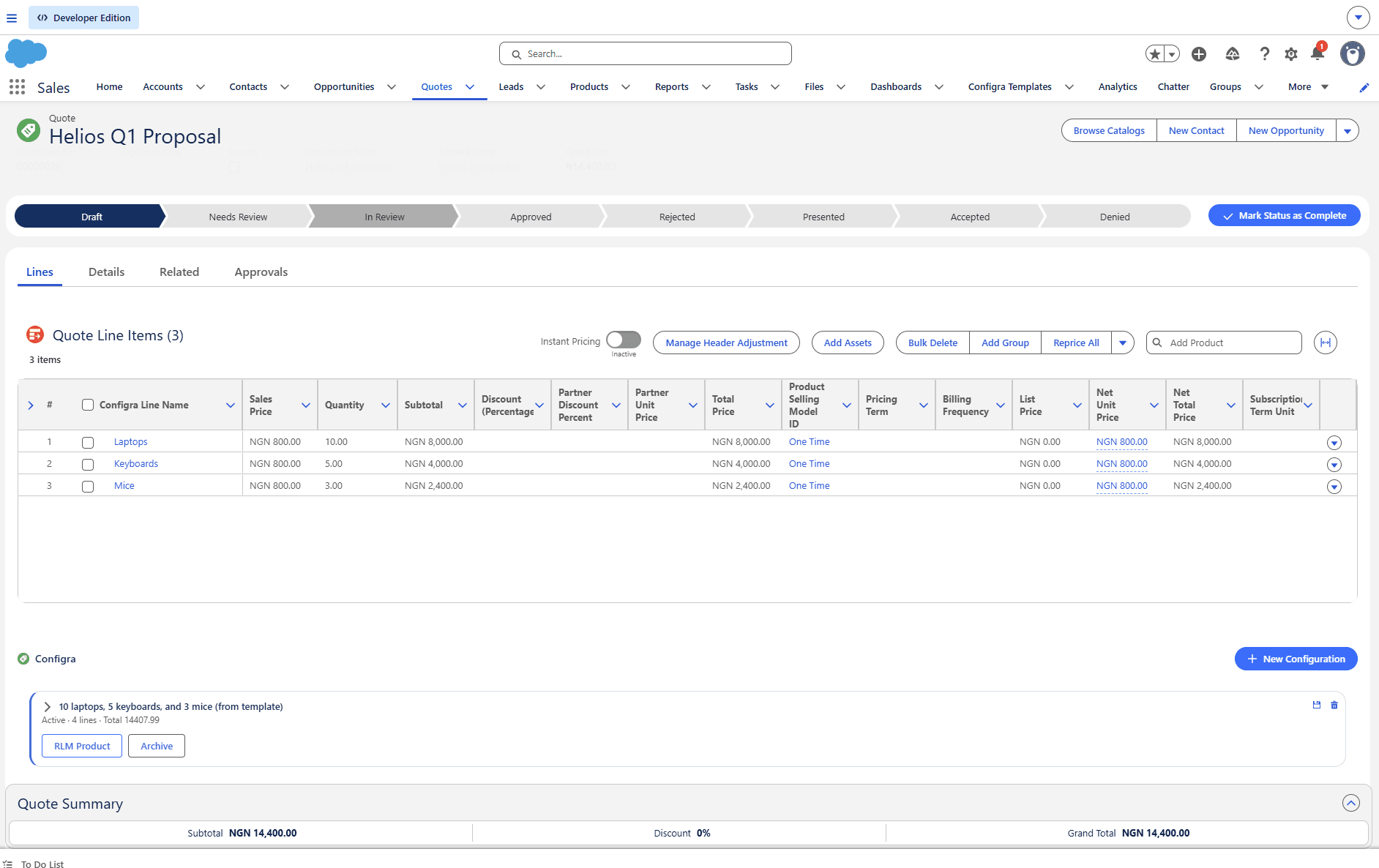
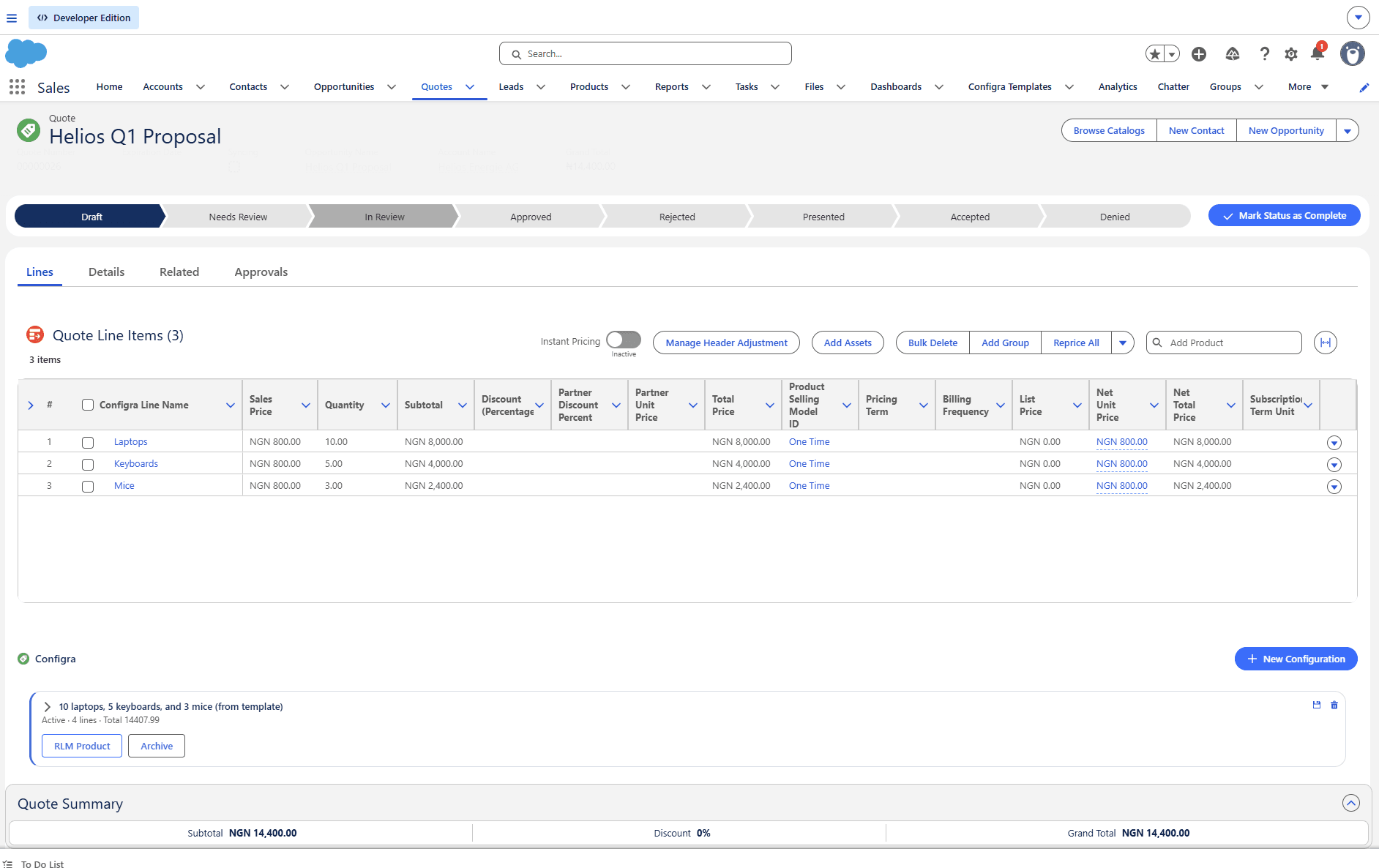
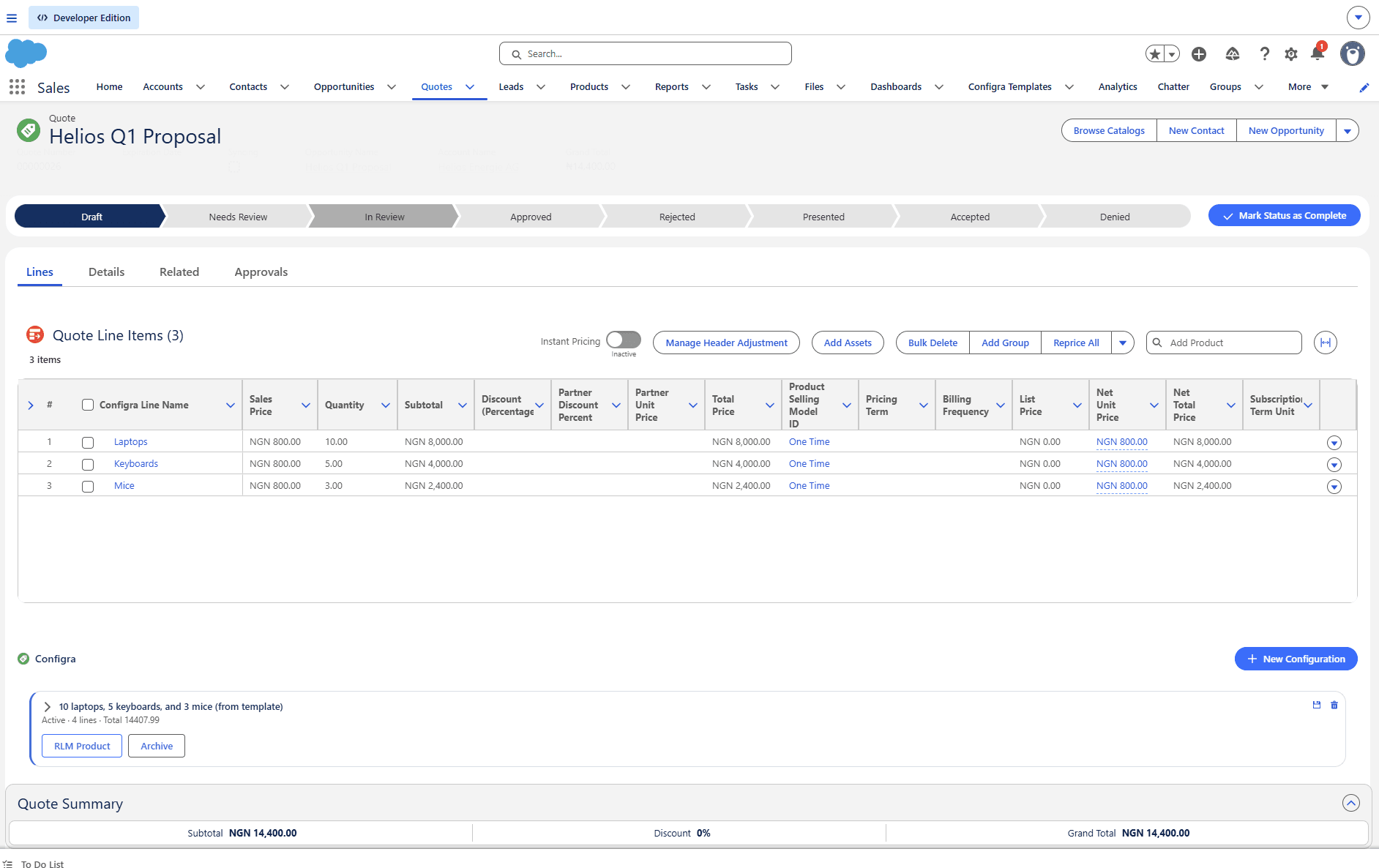
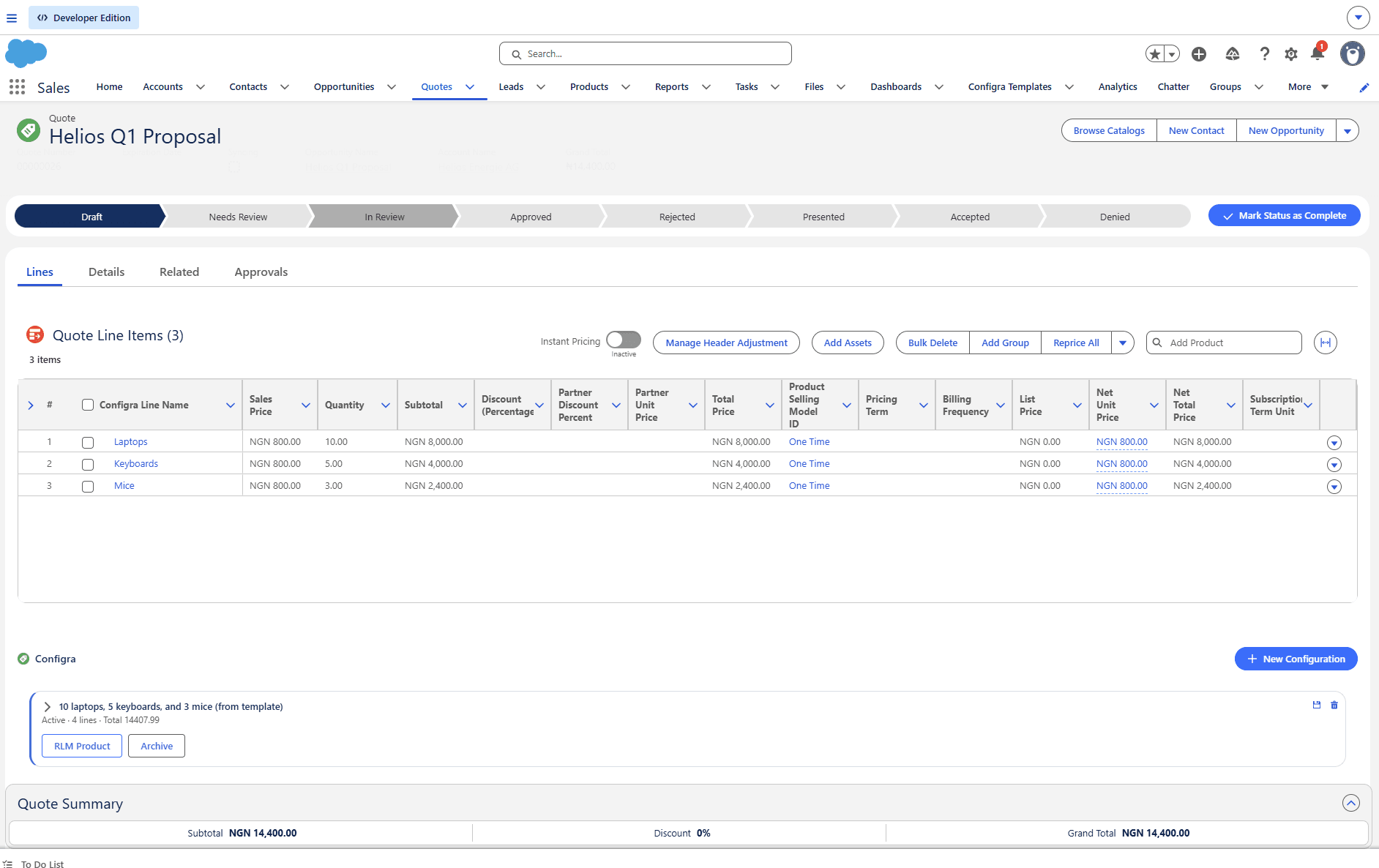
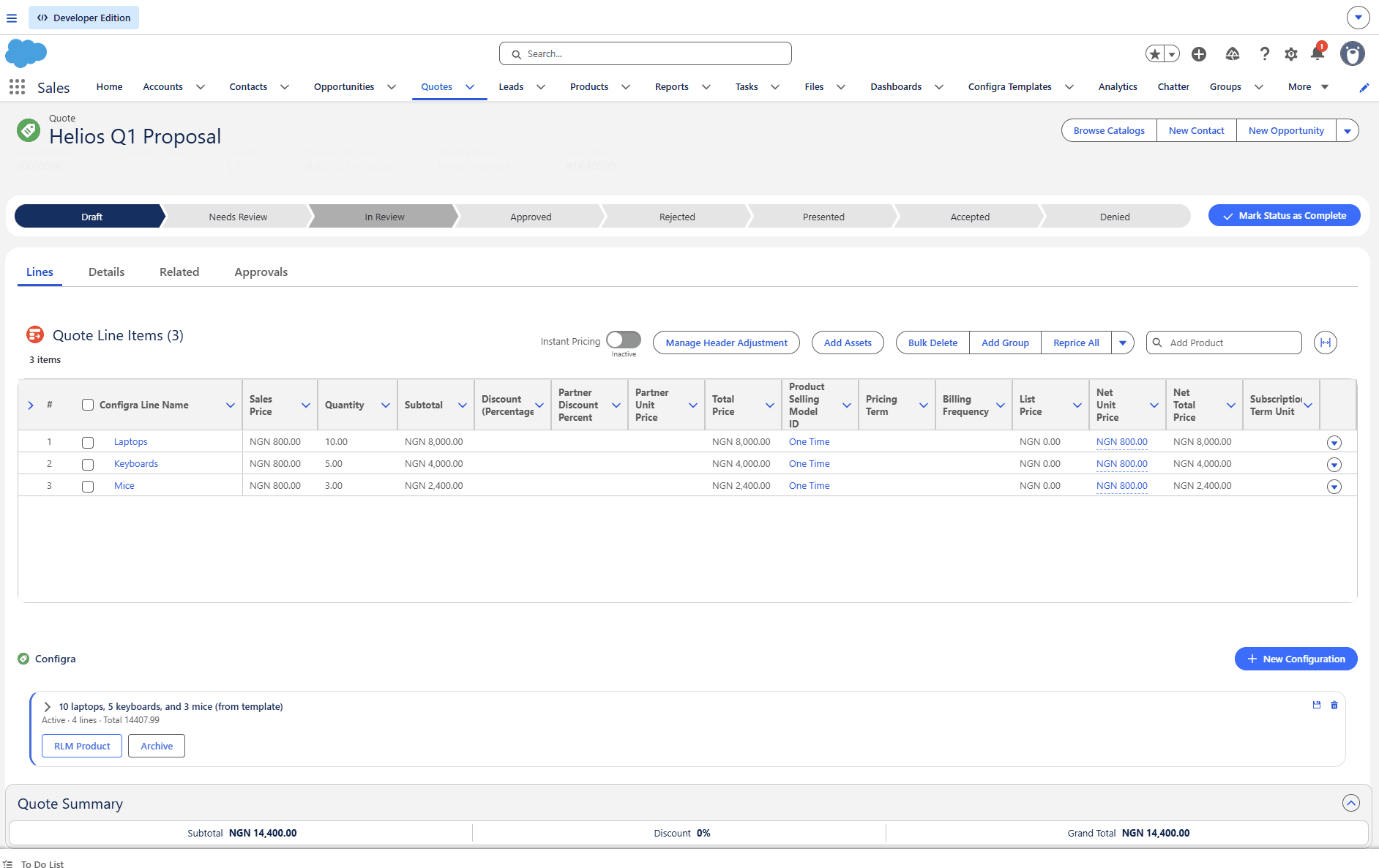
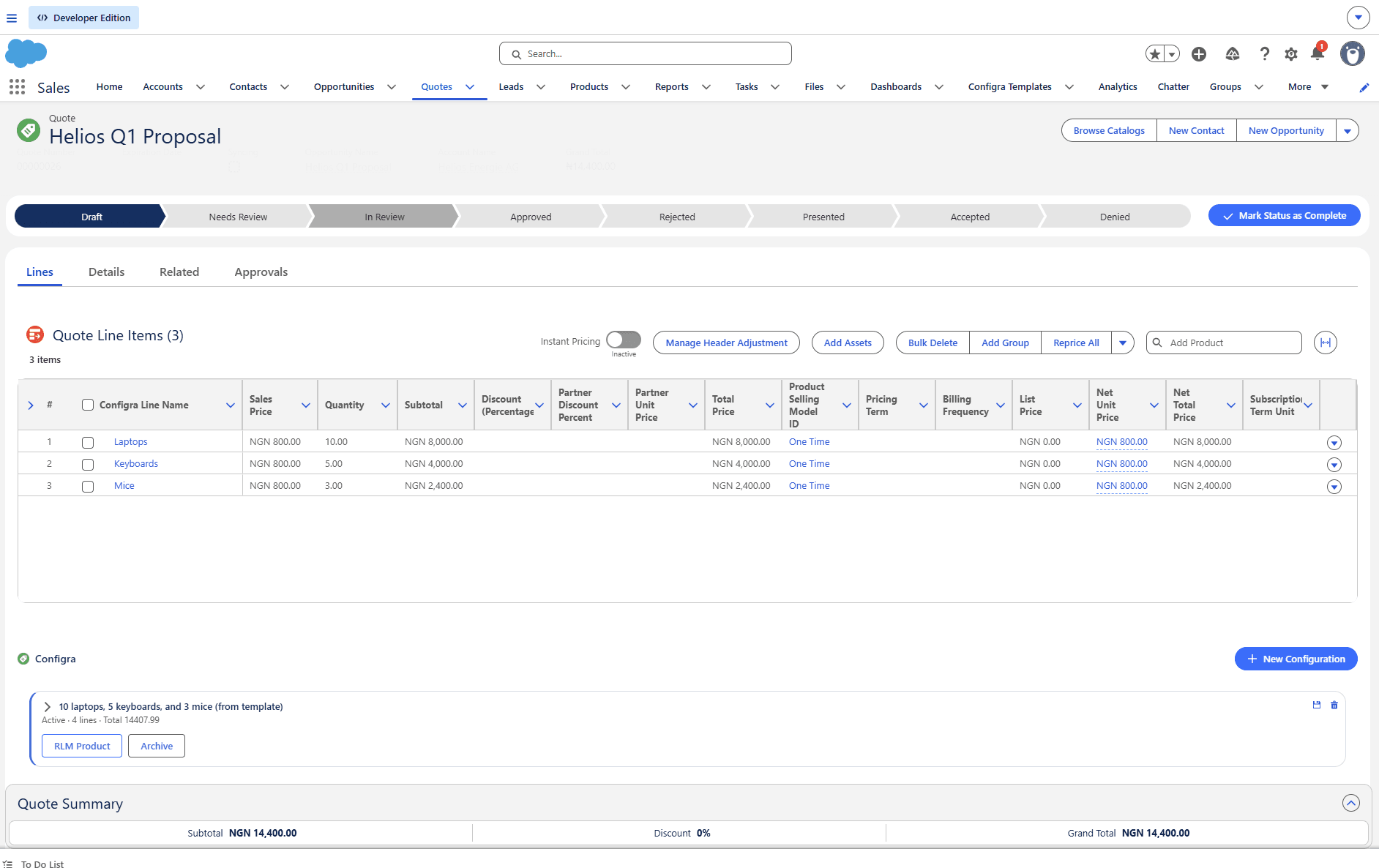
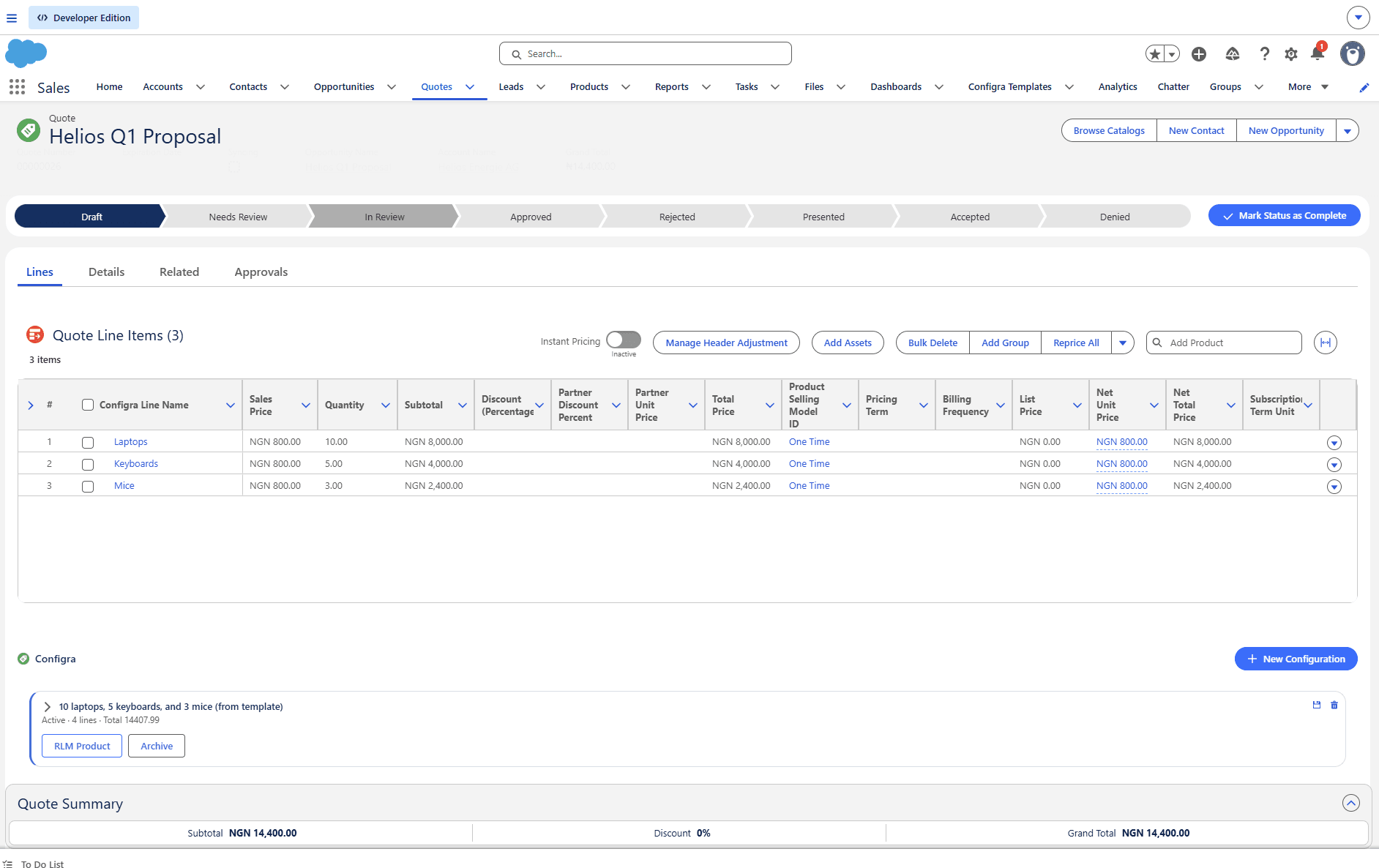
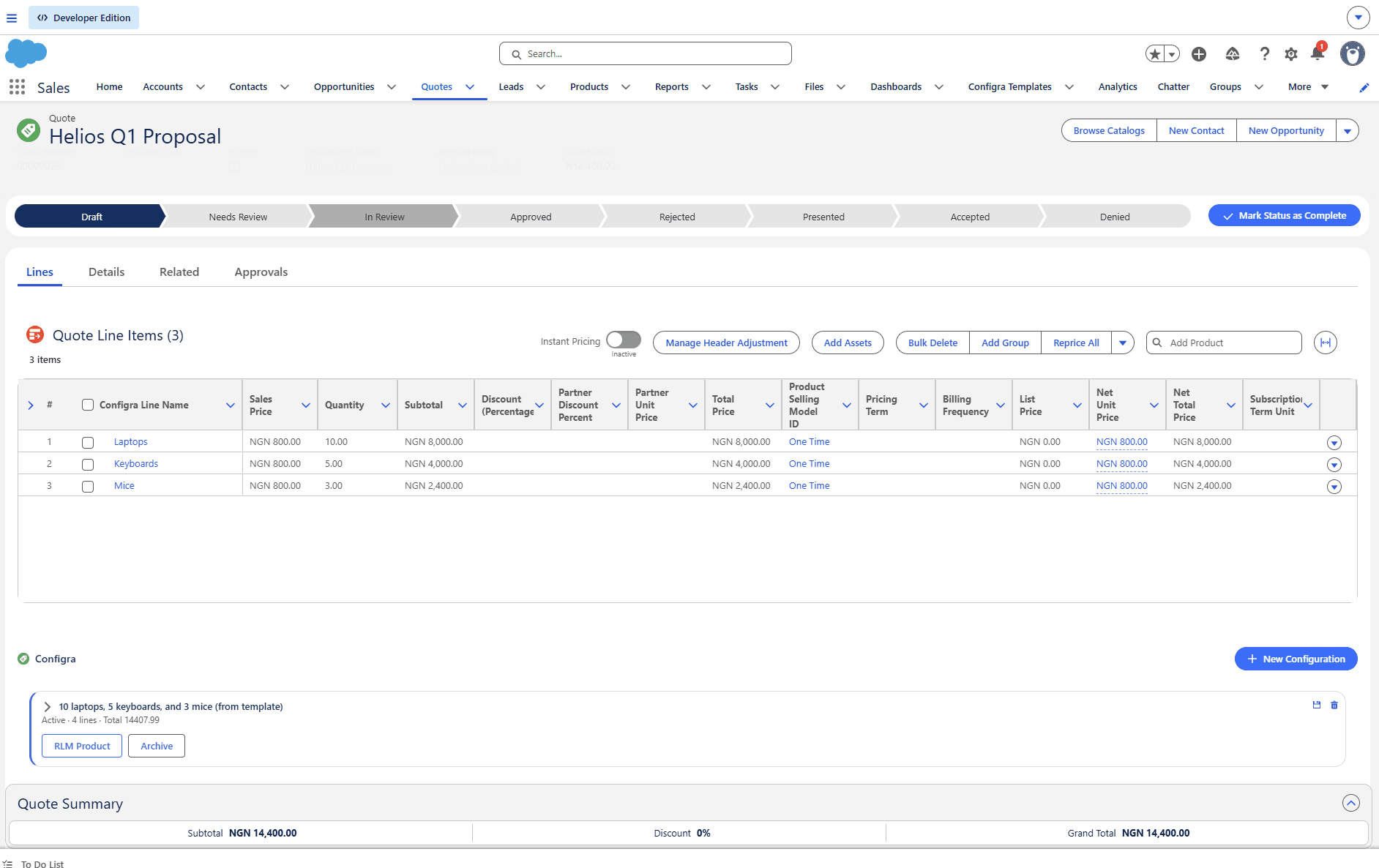
When the rep is ready, one click attaches the configuration. Configra writes back to standard RLM Quote Line Items, but every line points to a single placeholder Product2 (CONFIGRA_PLACEHOLDER). The catalog stays clean. Pricing, tax engines, approvals, and revenue recognition fire normally — Configra is a configuration surface, not a pricing bypass.

  • All lines point to a single CONFIGRA_PLACEHOLDER Product2 — no catalog noise
  • Standard Quote pricing, tax engines, and approvals fire normally
  • The configuration appears in the Configra panel below the Quote Lines
  • Editing or removing the configuration updates the lines in place
salesforce.com
Salesforce Quote page showing line items attached from a Configra configuration, with the Configra panel visible below the Quote Lines
Placeholder · updating
Step 07Screenshot updating soon

Save it as a Template — reusable in one click

When the configuration will be useful on the next quote, save it as a Template.

Some configurations are obviously reusable — a standard onboarding bundle, a typical hardware refresh, a quarterly renewal pattern. Save as Template captures the whole thing (configuration metadata + lines + attributes) and drops it in the Template Library. The next rep on a new quote opens Configra → Load from Template → one click — the entire configuration is on their quote, ready to tweak.

  • Private templates — only the rep who saved it can load it
  • Public templates — visible to anyone with the Configra Sales Rep permission set
  • Category + description make the library searchable
  • Usage count surfaces which templates pay off and which don't
  • No catalog write — templates live in their own object, not in Product2
salesforce.com
Configra Save as Template modal with name, category, description, and public/private toggle
Placeholder · updating
Step 08Screenshot updating soon

Promote it to a permanent RLM Product

When a one-off becomes a recurring pattern, one click promotes it to a real Product2.

When the same configuration is being used by three, five, ten reps across the org — when it's no longer deal-specific but a real product line — Configra's Convert to RLM Product flow takes the configuration and turns it into a permanent catalog Product2 with its full bundle structure, selling model, and PricebookEntry. From the next quote on, reps don't need Configra to sell that thing anymore. They quote the product directly.

  • Auto-generated Product2 with the configuration's name, type, and family
  • Bundle structure mirrors the configuration's line types
  • ProductSellingModel + PricebookEntry created automatically
  • Next time the rep wants this exact thing, they pick it from the catalog — Configra has done its job
salesforce.com
Configra Convert to RLM Product modal with product code, family, selling model dropdown, and Convert button
Placeholder · updating

The shape of the system

Configra is a quiet feedback loop on top of RLM.

Reps build what the deal needs, in the language the deal speaks. The configurations that recur become templates the team reaches for. The templates that recur become products the catalog earns. The catalog stays small because the business decides what belongs in it — not because someone needed to ship a deal on Thursday.

See how it fits your org.

Configra is in private beta. Join the waitlist to be among the first orgs to install — early access participants get founding-member pricing for life.